 Image 1 of 4
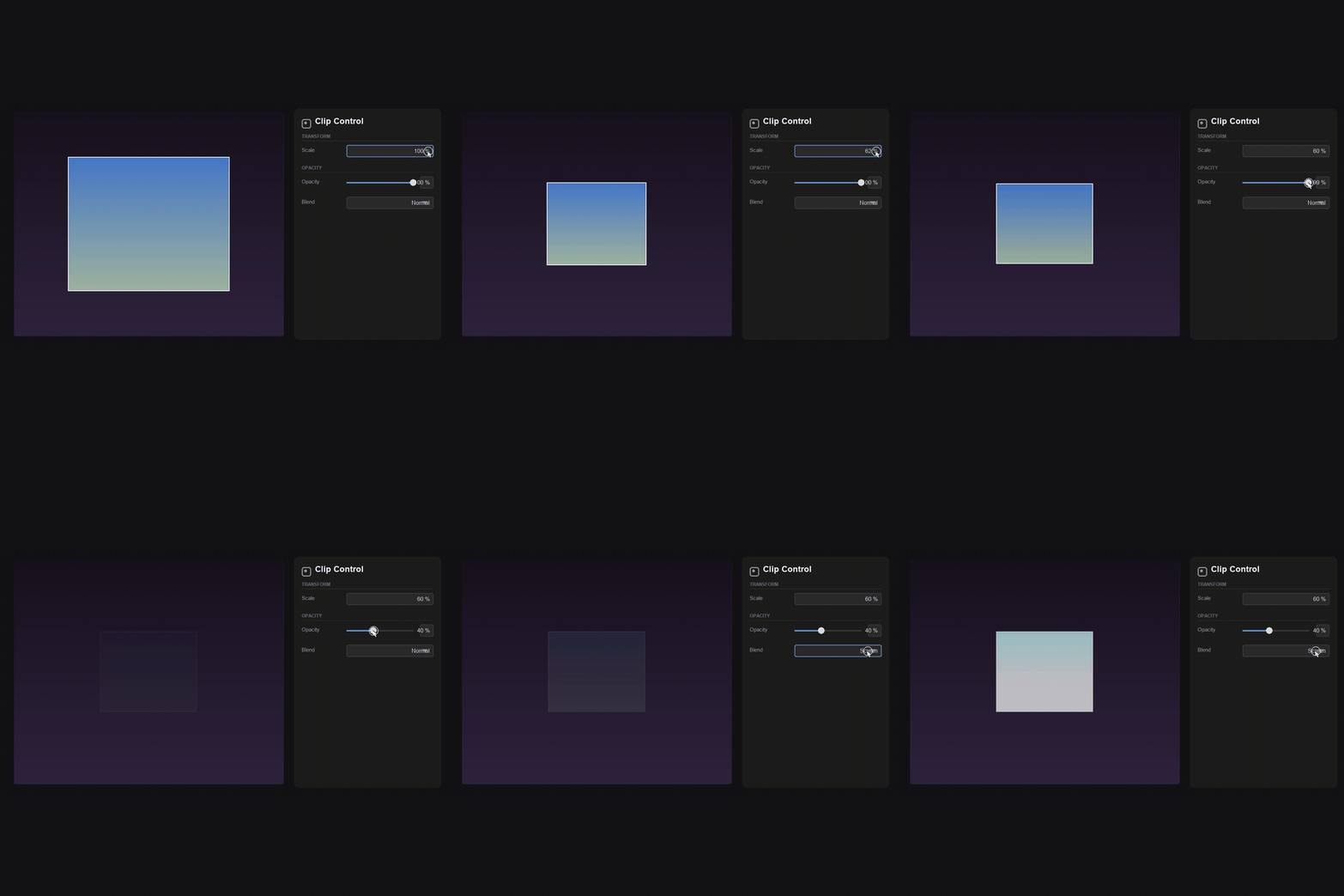 Image 2 of 4
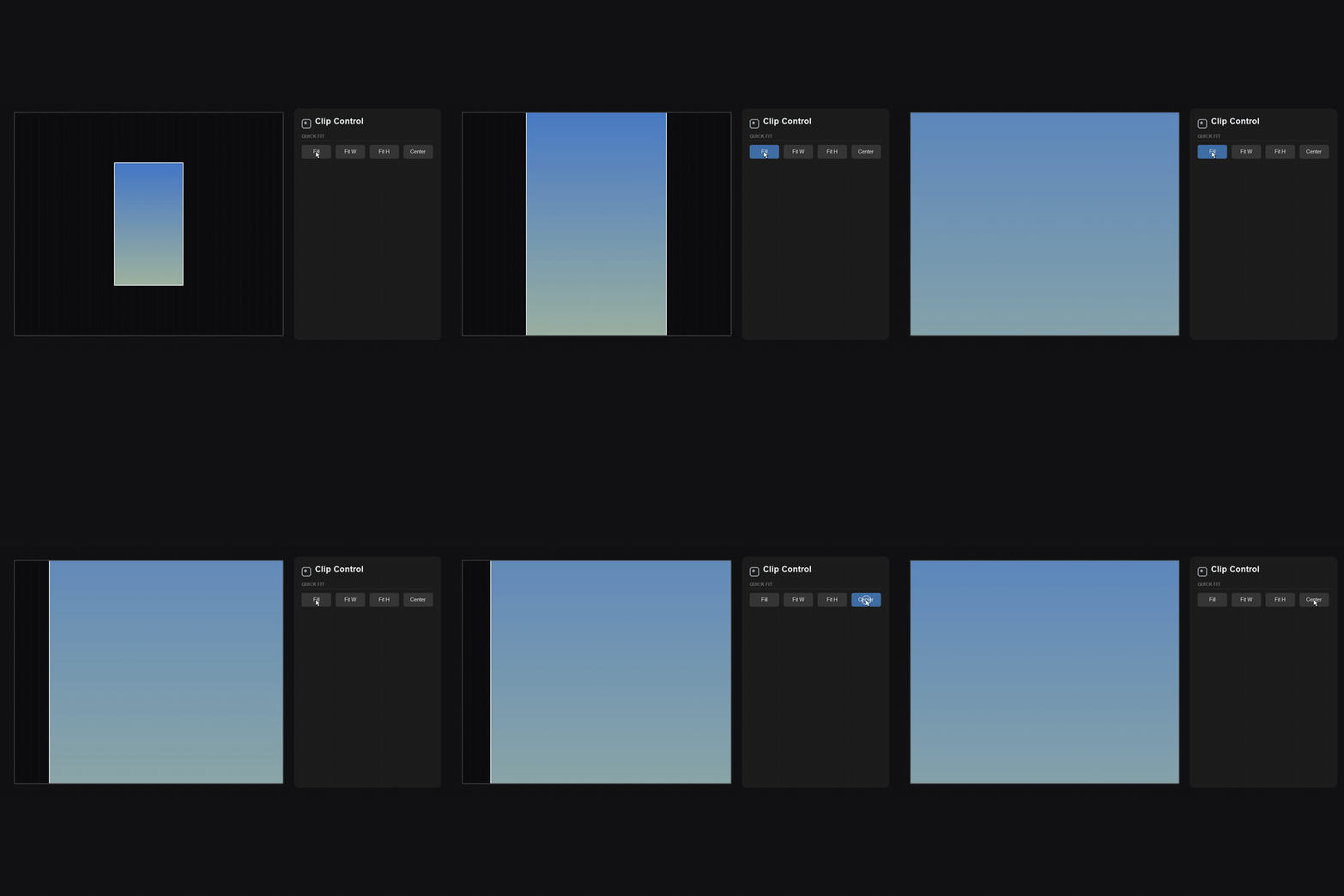 Image 3 of 4
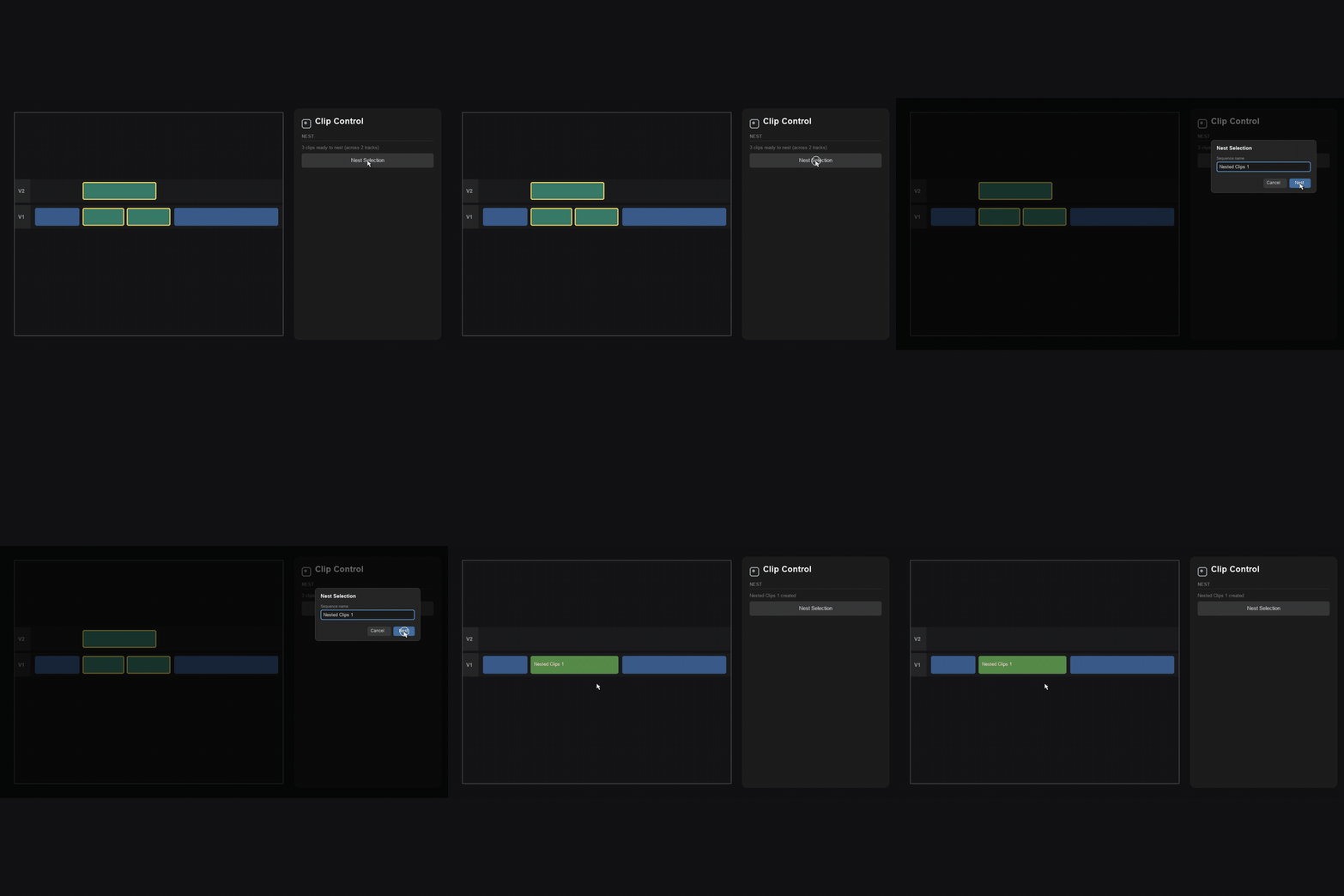 Image 4 of 4
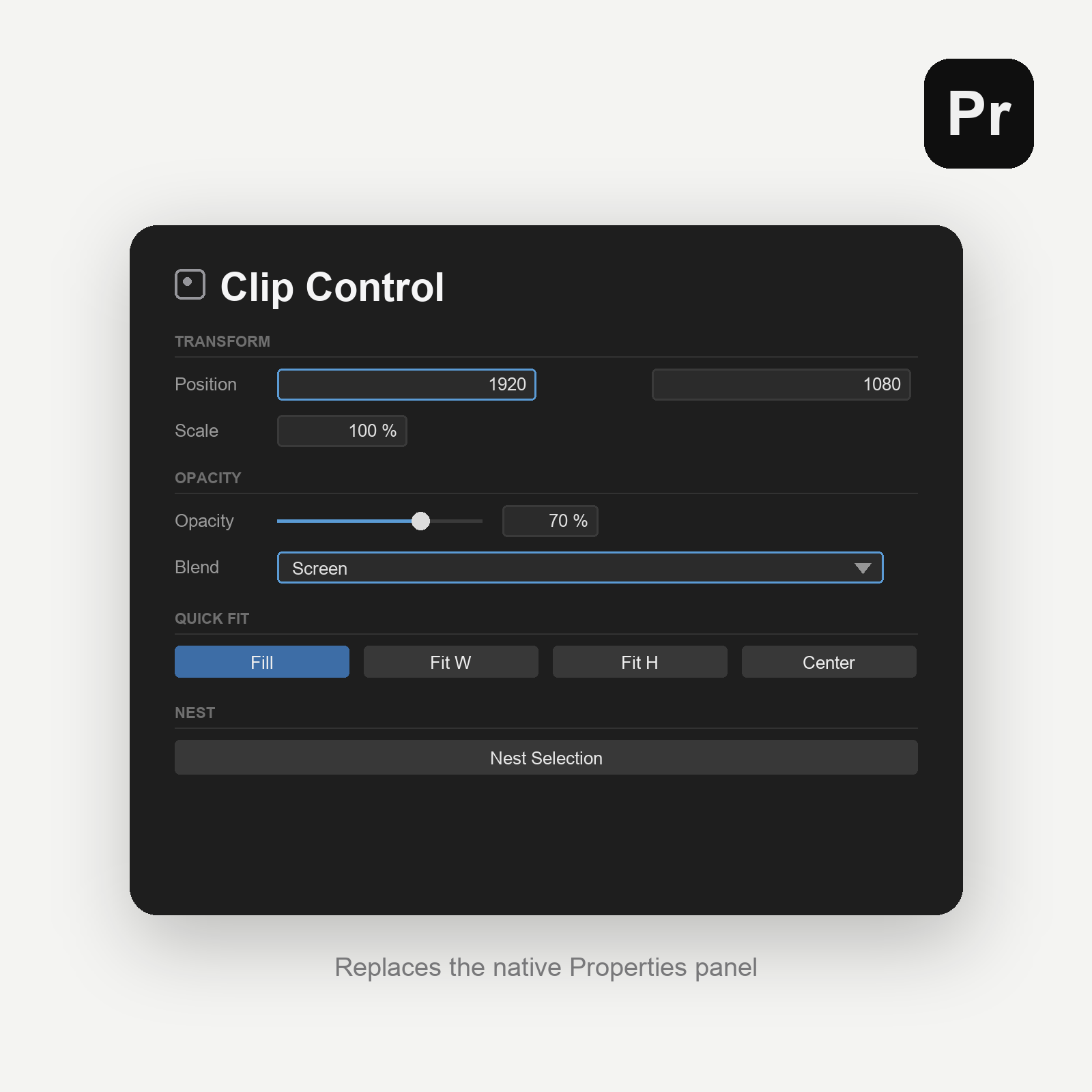
Premiere’s Properties panel is great for cropping and framing a clip fast but it can’t touch blend mode and it can’t nest or solo. Clip Control is one compact panel that does all of it, on your selection, live.
Everything Properties does > live, on every selected clip
Position, Scale, Rotation, Anchor Point and Crop, each a draggable scrubby number you can also type into. Change one and it applies to every clip you have selected. The panel mirrors the current values in real time, so it’s a true replacement, not a one-way remote.
Opacity and Blend Mode > the two things Properties leaves out
A full opacity slider and every Premiere blend mode, right next to the transform controls. No more jumping to Effect Controls just to switch a clip to Screen or Multiply.
Quick Fit
Fill, Fit Width, Fit Height, Center and Reset. One click each. Snap a mismatched-aspect clip to the frame, or re-center something that got dragged, without opening a single dialog.
Solo Track
Working on a VFX shot, an overlay or a b-roll layer? One toggle mutes every other video track so you see just that clip. Un-solo puts every track back exactly the way it was, including tracks you’d already hidden yourself.
Nest from the panel
Select clips, give the new sequence a name, and nest them without leaving the panel. Multi-track selections collapse onto the lowest track; transitions and effects come along into the nest.
Slow Zoom
A slow push in or out across the whole clip — pick 5, 10, 15 or 20 percent, zoom in or zoom out. The panel adds a Transform effect and keyframes the scale from the first frame to the last, so the move runs the full length of the clip. Keyframes land on the cut even on trimmed or speed-changed clips, and zoom out always ends at 100% so it never reveals a black edge.
Clip Info at a glance
Resolution, frame rate (color-coded), average data rate and duration for the selected clip. No trip back to the Project panel.
Works on macOS and Windows, Premiere Pro 2021 (15.4) and newer.
Premiere’s Properties panel is great for cropping and framing a clip fast but it can’t touch blend mode and it can’t nest or solo. Clip Control is one compact panel that does all of it, on your selection, live.
Everything Properties does > live, on every selected clip
Position, Scale, Rotation, Anchor Point and Crop, each a draggable scrubby number you can also type into. Change one and it applies to every clip you have selected. The panel mirrors the current values in real time, so it’s a true replacement, not a one-way remote.
Opacity and Blend Mode > the two things Properties leaves out
A full opacity slider and every Premiere blend mode, right next to the transform controls. No more jumping to Effect Controls just to switch a clip to Screen or Multiply.
Quick Fit
Fill, Fit Width, Fit Height, Center and Reset. One click each. Snap a mismatched-aspect clip to the frame, or re-center something that got dragged, without opening a single dialog.
Solo Track
Working on a VFX shot, an overlay or a b-roll layer? One toggle mutes every other video track so you see just that clip. Un-solo puts every track back exactly the way it was, including tracks you’d already hidden yourself.
Nest from the panel
Select clips, give the new sequence a name, and nest them without leaving the panel. Multi-track selections collapse onto the lowest track; transitions and effects come along into the nest.
Slow Zoom
A slow push in or out across the whole clip — pick 5, 10, 15 or 20 percent, zoom in or zoom out. The panel adds a Transform effect and keyframes the scale from the first frame to the last, so the move runs the full length of the clip. Keyframes land on the cut even on trimmed or speed-changed clips, and zoom out always ends at 100% so it never reveals a black edge.
Clip Info at a glance
Resolution, frame rate (color-coded), average data rate and duration for the selected clip. No trip back to the Project panel.
Works on macOS and Windows, Premiere Pro 2021 (15.4) and newer.